3. Workflow & Approval
When you save a Job Order you land on its Workflow page (/job/orders/{id}/workflow). This is a
guided, one-step-at-a-time screen: it shows only the fields for the order's current status, and
each submission advances it to the next status. A stepper at the top shows where you are.
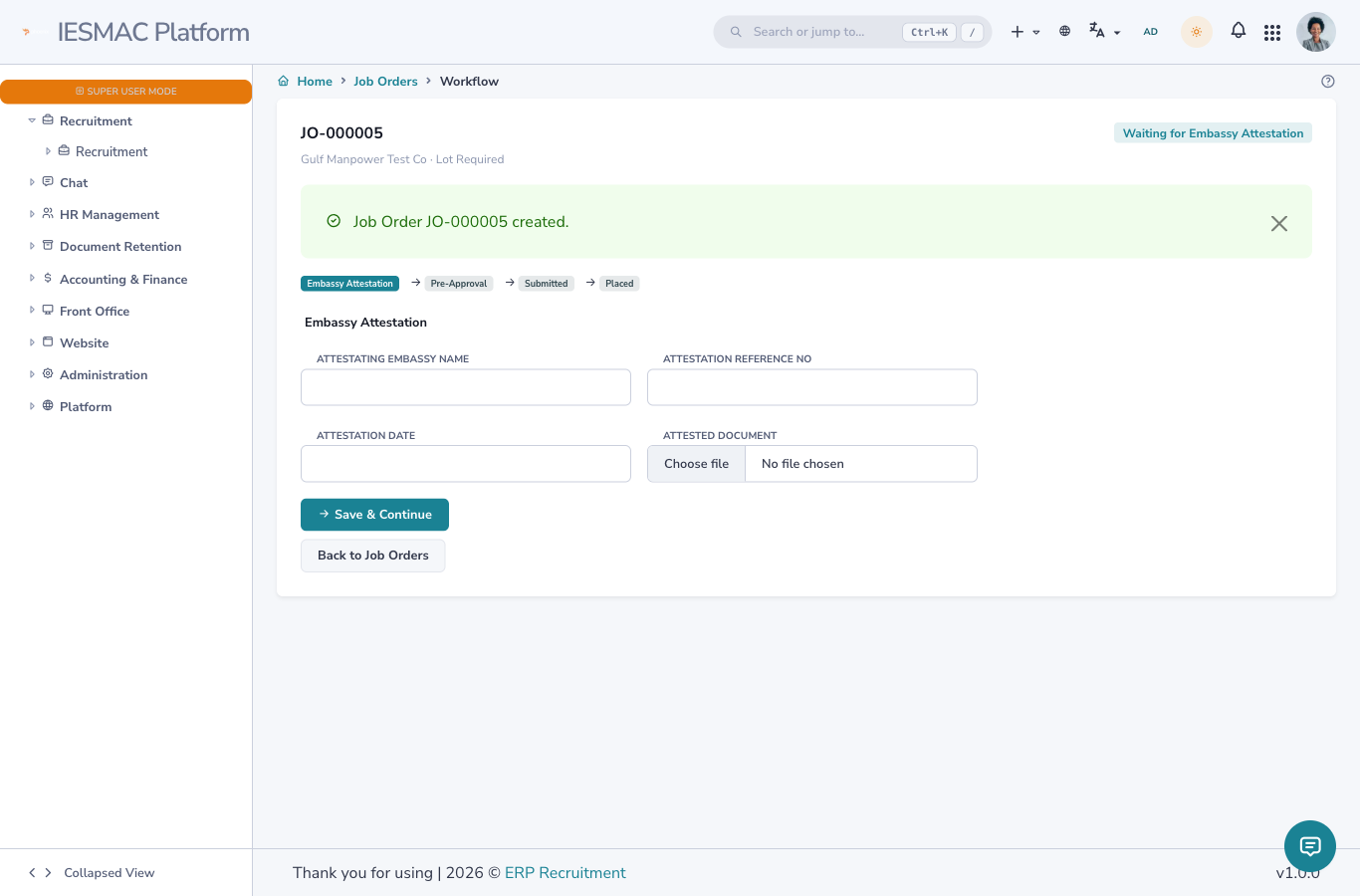
The status path
            ┌──────────── LOT path (Lot Number ticked) ────────────┐
Create ─▶   Waiting for Embassy    ─▶  Waiting for Purba Syukriti  ─▶  Submitted   ─▶  (admin)  ─▶  Job Order
            Attestation                / Pre-Approval                  for Approval     APPROVE      PLACED 🔒

            ┌──────── WORK-PERMIT path (Lot Number not ticked) ────────┐
Create ─▶   ───────────────────────────────────────────────────────▶  Submitted   ─▶  (admin)  ─▶  Job Order
                                                                       for Approval     APPROVE      PLACED 🔒
Pathway A — Lot orders (Lot Number ticked)
Step 1 — Embassy Attestation
The order starts at Waiting for Embassy Attestation. Enter:
| Field | Required | Notes |
|---|---|---|
| Attestating Embassy Name | ✅ | e.g. Nepal Embassy, Abu Dhabi. |
| Attestation Reference No | ✅ | The attestation document reference. |
| Attestation Date | ✅ | Date picker (AD/BS). |
| Attested Document | — | Upload the attested PDF/image. |
Click Save & Continue → status becomes Waiting for Purba Syukriti / Pre-Approval.
Step 2 — Purba Syukriti / Pre-Approval
Now enter the DoFE pre-approval details:
| Field | Required | Notes |
|---|---|---|
| Chalani No | ✅ | DoFE registration / chalani number. |
| Pre-Approval Date | ✅ | Date the purba syukriti was granted. |
| Lot No | ✅ | The LT (lot) number. |
| Lot Expiry Date | ✅ | Validity end date of the lot. |
Click Submit for Approval → status becomes Submitted for Approval.
Pathway B — Work-permit orders (Lot Number not ticked)
There is no embassy or pre-approval step. The order is Submitted for Approval the moment you create it. Go straight to the final gate below.
The final gate — Higher-Authority approval
A submitted order is pending until a higher authority places it.
-
The approver opens Job Orders → Approvals (
/job/orders/approvals).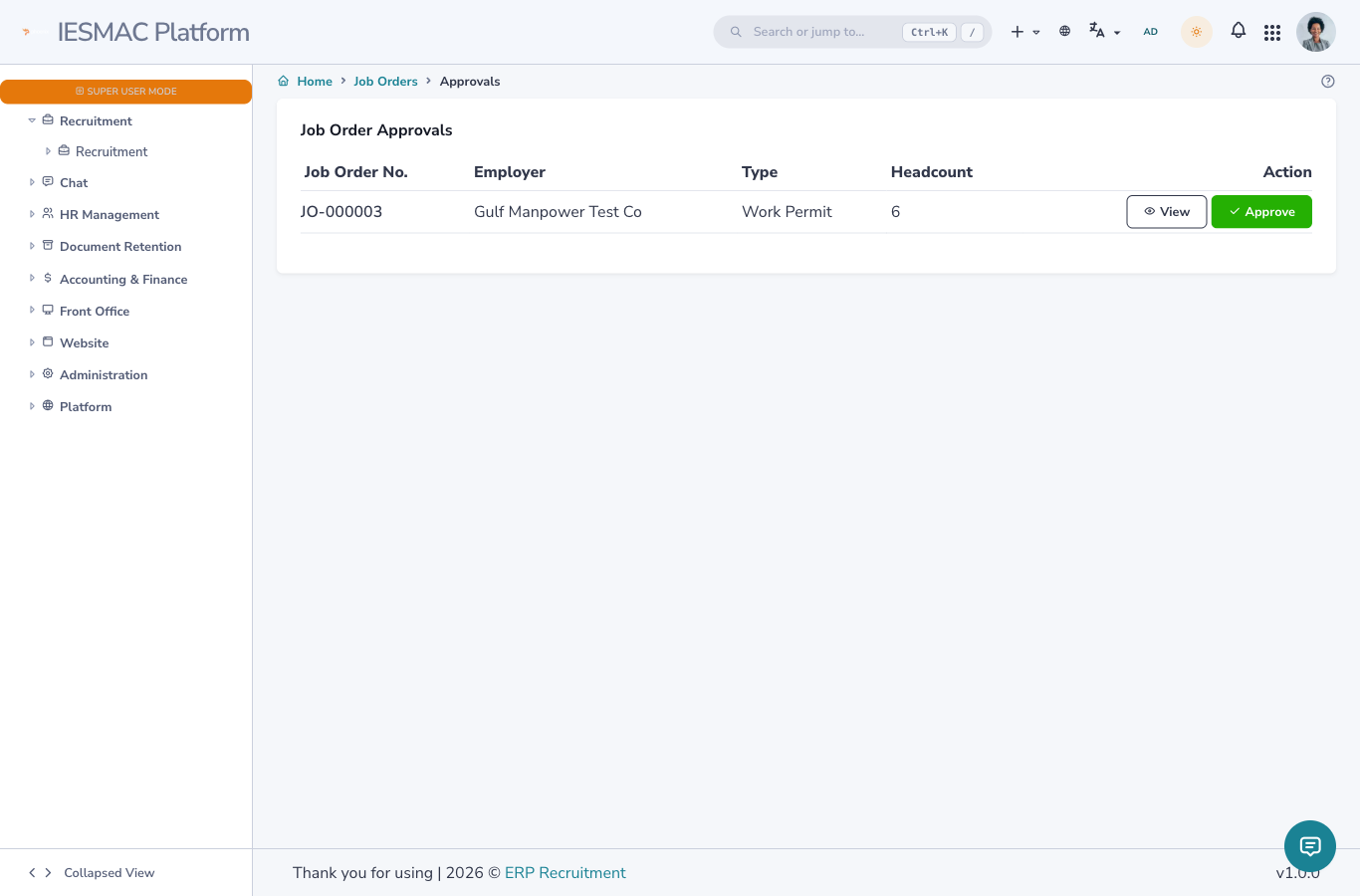
-
Each row shows the order number, employer, type and headcount, with View (opens the workflow) and Approve.
- Clicking Approve moves the order to Job Order Placed.
Placing locks the order — permanently
On approval the order's is_locked flag is set. From then on every field, the Edit button and
the Delete action are disabled — on the form, in the list, and on the detail page. There is no
unlock. Only approve an order you are sure about.
What “locked” looks like
- List — the row's ⋯ menu shows Locked (placed) instead of Edit, and Delete is greyed out.
- Detail / Edit — a yellow “This job order is approved and locked” banner; all inputs disabled.
Next: 4. Compliance →