Employees & Onboarding
There are four ways an employee record comes into being. All of them end with the person able to sign in to the self-service portal.
1. HR creates a new employee
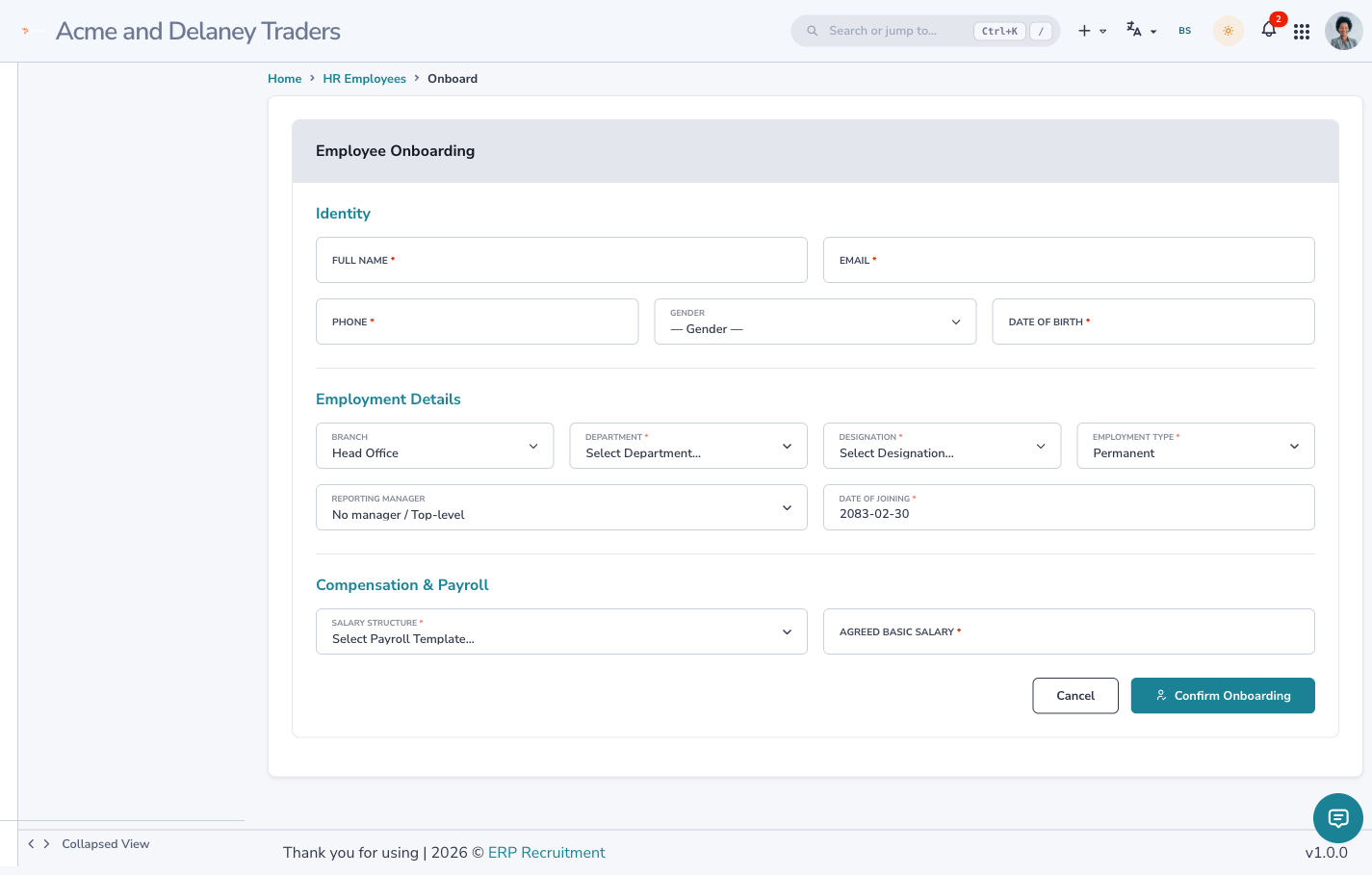
- HR Management → Employees → Onboard Employee (
/hr/employees/create). - Enter person details (name, email, phone, gender, date of birth) and employment details (department, designation, branch, employment type, agreed basic salary, salary structure, reporting manager).
- Save.
No password to set
You never type a password. On save the platform creates the account and emails a “set your password” link. The employee clicks it, chooses a password, and signs in.
The system validates as you save: PAN format, citizenship format, bank details, and that the joining date is at least 16 years after the date of birth. Minimum-wage compliance is checked against the Labour Act floor.
2. Convert an existing user
If the person already has an account (a former candidate or agent), open Onboard Employee with their user pre-selected — the form links a new employee record to the existing account instead of creating a duplicate.
3. From the recruitment pipeline (ATS)
When a candidate is marked Hired, a provisional employee is created automatically in
ONBOARDING_PENDING status and the person is routed to the self-service onboarding wizard on their
next login.
4. Employee self-completion (the wizard)
A new joiner in ONBOARDING_PENDING is trapped on the onboarding wizard (/ess/onboarding)
until they complete it — they cannot reach the rest of the app. The 3-step wizard collects:
- Personal & compliance — date of birth, citizenship number, PAN (validated live).
- Emergency contact.
- Payroll bank details.
 Placeholder — screenshot to be added (
assets/img/hrms-onboarding-wizard.png).
On submit they become ACTIVE (or PROBATION — see below) and gain full portal access.
The employee lifecycle
Probation auto-confirmation
Hire someone as PROBATION type and the system sets a probation end date (6 months, the Labour Act cap). A nightly job automatically confirms them to ACTIVE once that date passes — no manual step. You can confirm early or extend the end date. Probationers are paid normally throughout.
Managing employees
From Employees, each row's ⋯ menu offers the Employee File, Edit Details,
Send Password Reset, Attendance Log, Leave History, Payslips, an
Appointment Letter (/hr/employees/letters/{id}/appointment), and Offboard.
Org structure first
Branch, department, designation and reporting line must exist before you can create the first employee — see Workspace Setup.
Next: Attendance & Roster →