1. Employer Registry
An employer is the foreign company that will receive your workers (the principal/sponsor on the demand letter). Before you can raise a single Job Order for a company, it must exist here and be Approved.
Register a new employer
- Go to Recruitment → Employers (
/employers). - Click New Employer (top-right).
- Fill the form (below) and click Save Employer.
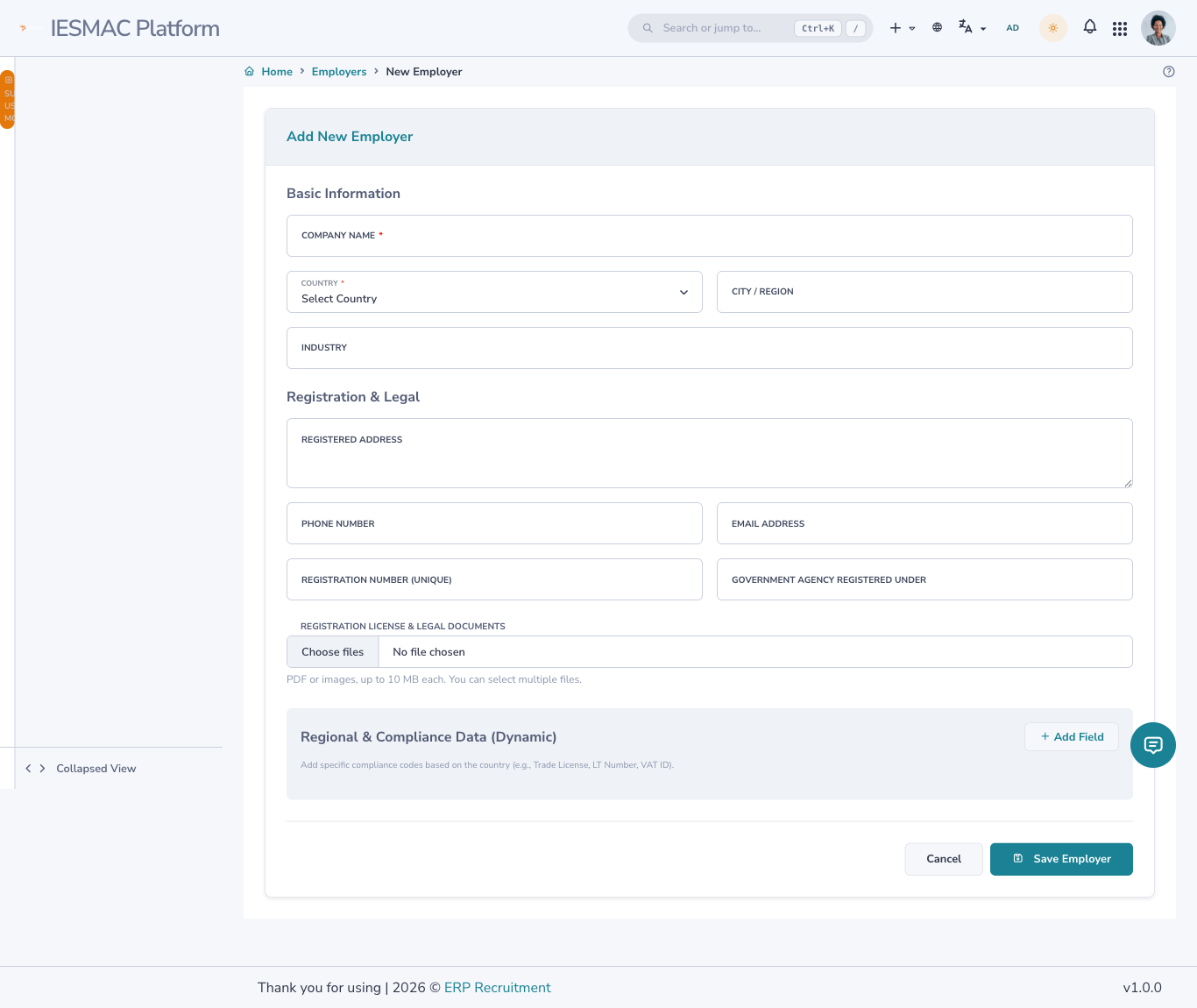
Every field, explained
Basic Information
| Field | Required | Notes |
|---|---|---|
| Company Name | ✅ | The legal/trading name, e.g. Gulf Manpower Test Co. |
| Country | ✅ | Country of operation / destination, e.g. United Arab Emirates. |
| City / Region | — | e.g. Dubai. |
| Industry | — | e.g. Construction, Hospitality. |
Registration & Legal
| Field | Required | Notes |
|---|---|---|
| Registered Address | — | Full postal address. |
| Phone Number | — | Company contact, e.g. +971 50 000 0000. |
| Email Address | — | Validated as a real email if you type one. |
| Registration Number | — | The company licence/registration number. Must be unique — two employers can't share one. |
| Government Agency Registered Under | — | The authority it is registered with, e.g. Ministry of Human Resources & Emiratisation. |
| Registration License & Legal Documents | — | Upload one or more PDF or image files (≤ 10 MB each). You can select several at once. |
Regional & Compliance Data (Dynamic) — an optional key/value area for any extra country-specific codes (Trade Licence, LT Number, VAT ID, etc.). Click Add Field, type a label and a value.
Sample data to try it out
Company Gulf Manpower Test Co · Country United Arab Emirates · Email hr@gulfmanpower.test · Registration REG-TEST-001 · Agency Ministry of Labour UAE · Address Sheikh Zayed Road, Dubai.
What happens on Save
The employer is created with status Pending (not yet usable) and the success message reads “Employer registered — sent for approval.” It now waits for a reviewer.
Approve (or reject) an employer
New employers cannot receive job orders until a reviewer approves them.
- On the Employers page, click Approvals (top-right). The badge shows how many are pending.
- You land on Employer Approvals (
/employers/review), on the Pending tab.
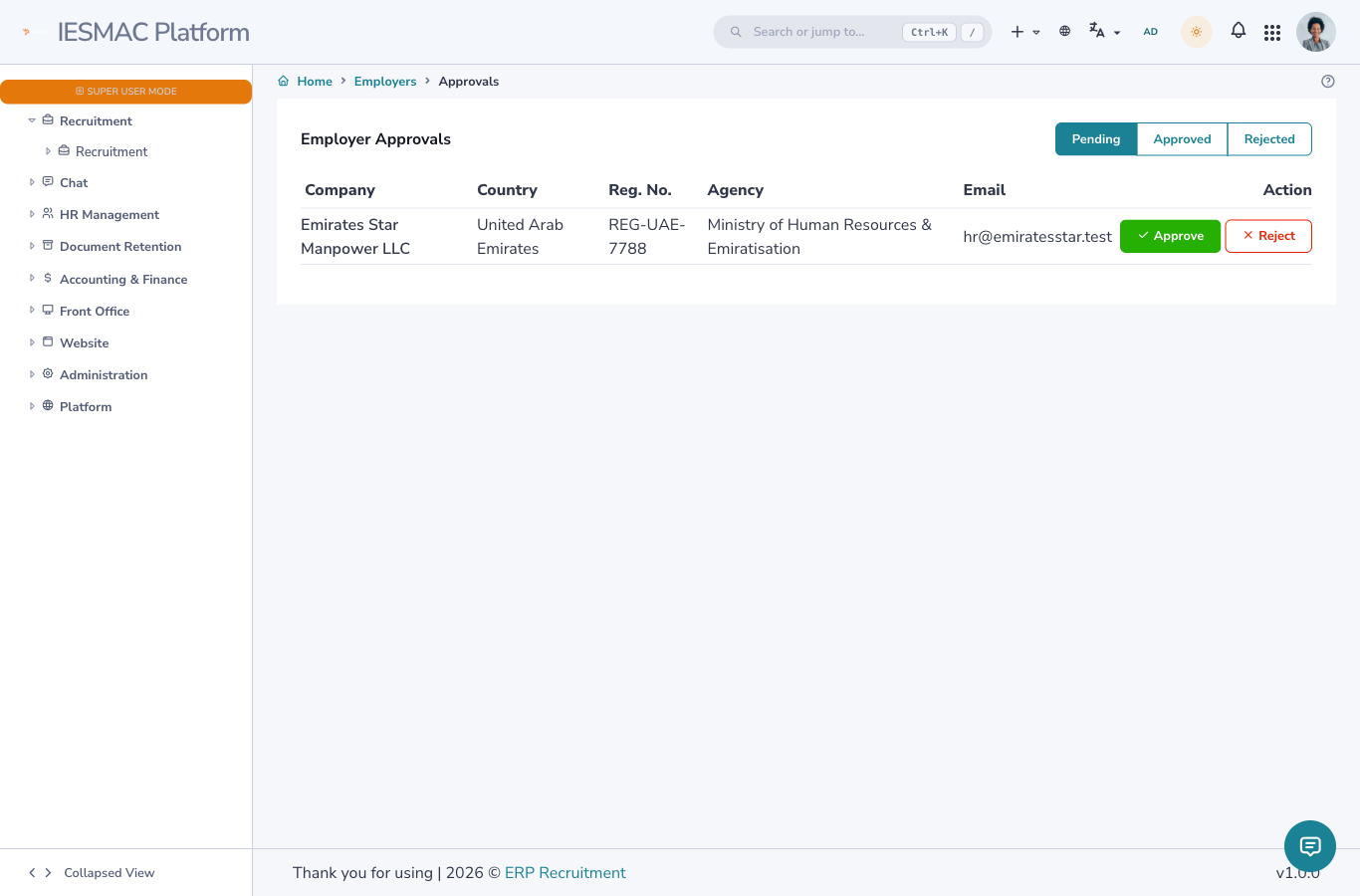
- For each row you can:
- Approve — the employer becomes usable immediately (“they can now receive job orders”).
- Reject — you are asked for a reason (required); the employer is sent back for correction.
- The Approved and Rejected tabs let you review past decisions and the rejection reasons.
Approval vs. standing
Approval (Pending → Approved/Rejected) is the one-time review gate. Separately, an approved employer has an operational standing — Active, Suspended or Blacklisted. Only an employer that is both Approved and Active appears in the Job Order dropdown.
Editing & deleting
- Open a row's ⋯ → Edit to change details or add more documents.
- An employer that already has linked job orders cannot be deleted — the system blocks it and tells you how many orders are attached. Reassign or remove those first.
Next: 2. Job Orders →