2. Job Orders
A Job Order is the demand — the request for a number of workers, in named positions, at stated salaries and benefits, for one approved employer. This page covers creating the order. What happens after you save (the approval workflow) is the next page.
The Job Order list
Recruitment → Job Orders (/job/orders) lists every demand with its current workflow status,
lot/work-permit type, headcount and number of job ads.
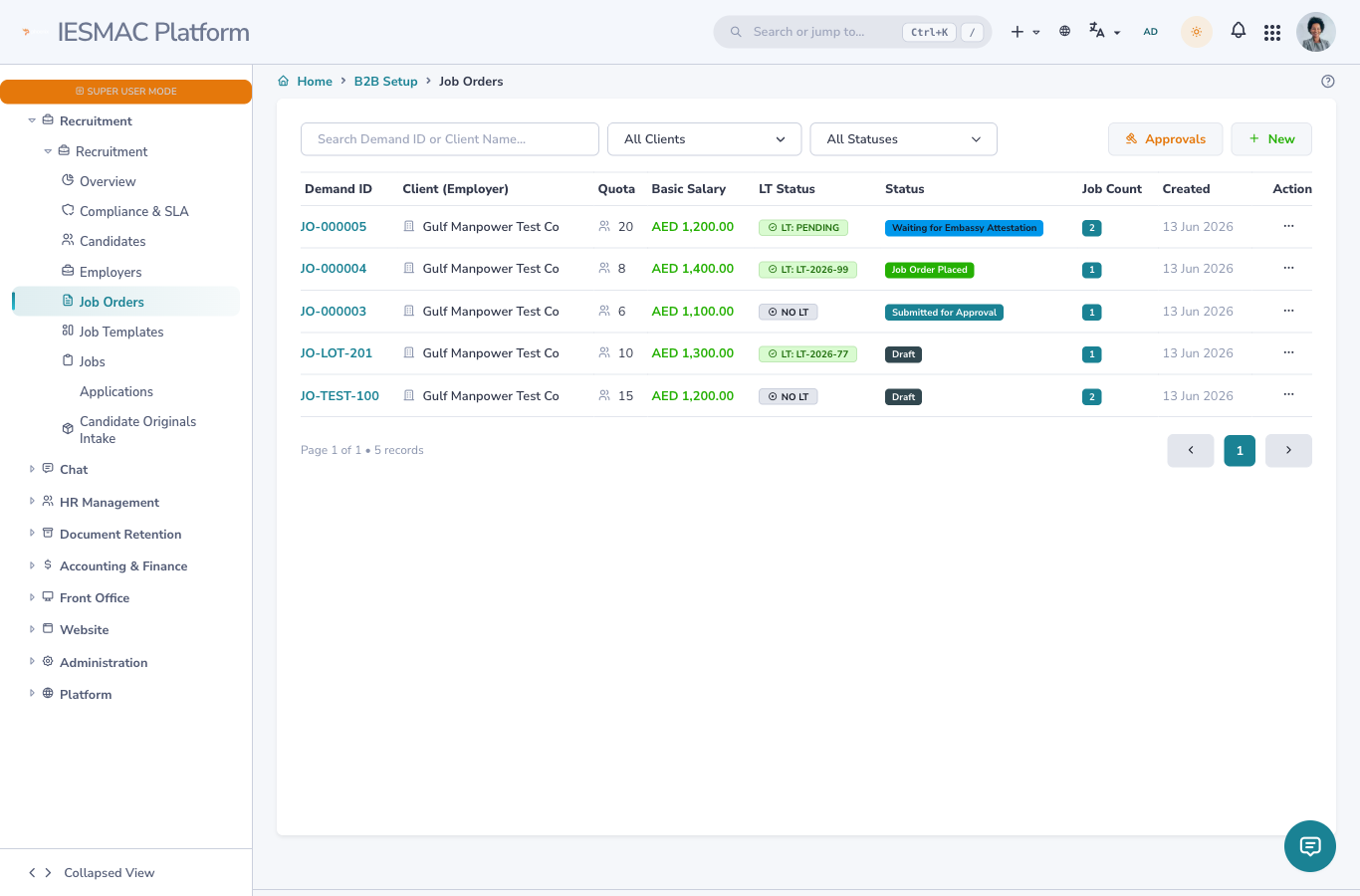
- New — create a job order (below).
- Approvals — the higher-authority queue (see Workflow).
- Each row's ⋯ menu has View Details, Workflow (continue the guided steps), Edit and Delete. On a placed (locked) order, Edit/Delete are replaced by a Locked marker.
Create a Job Order
Click New. Fill the form top-to-bottom.
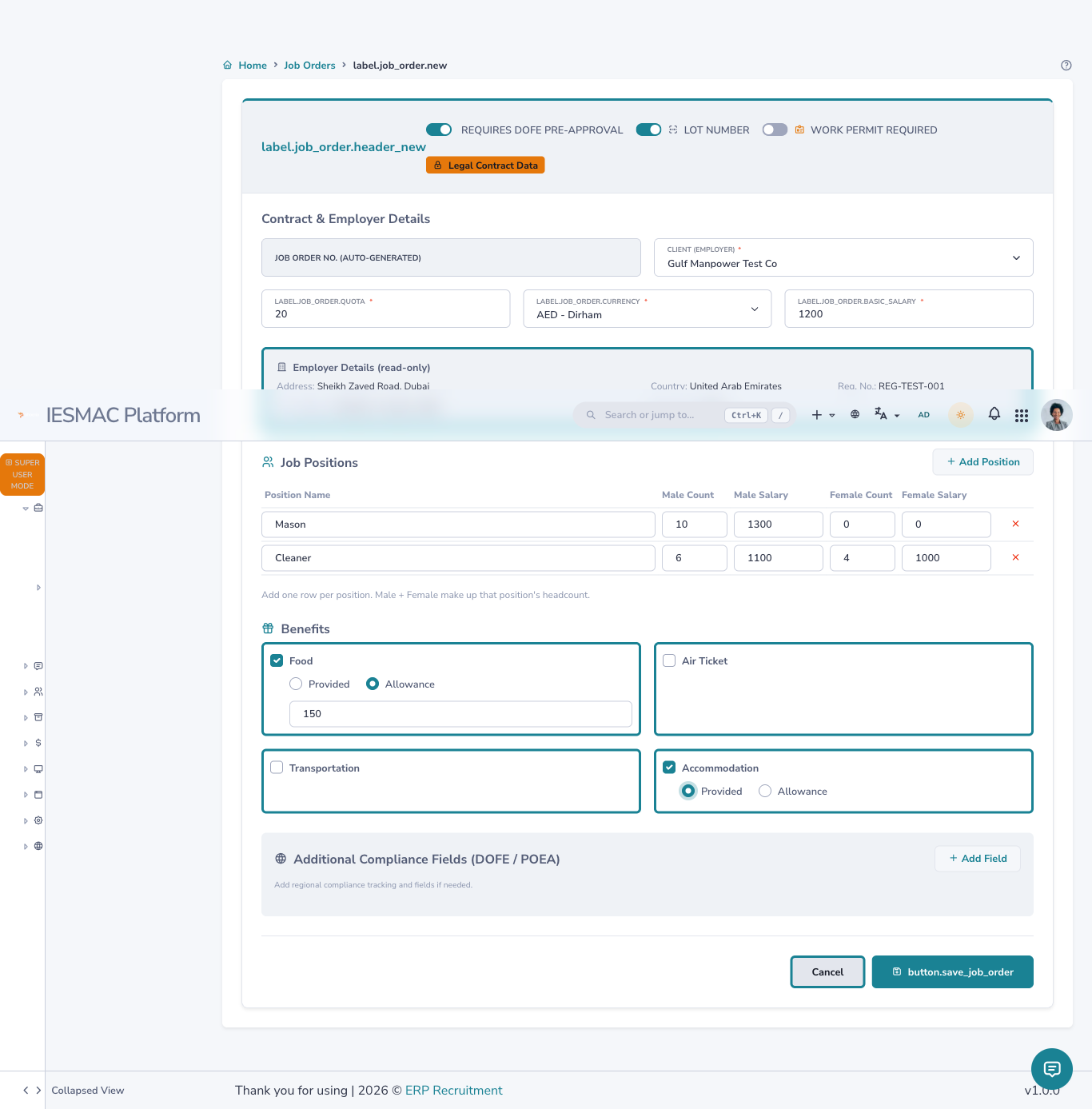
Header — the two tracking checkboxes
At the top-right are the two toggles that decide which path the order follows:
- Lot Number — tick this for the standard overseas lot path (DoFE purba syukriti / LT number). This makes the order go through embassy attestation and pre-approval before it can be approved.
- Work Permit Required — tick this for the work-permit path (no lot). The order skips the embassy and pre-approval steps and goes straight to Submitted for Approval.
Job Order No. is automatic
You do not type the order number. It is generated by the system on save (e.g. JO-000004)
and shown in a read-only box. This guarantees every order has a unique reference.
Contract & Employer
| Field | Required | Notes |
|---|---|---|
| Job Order No. | — | Read-only; auto-generated on save. |
| Client (Employer) | ✅ | Dropdown of Approved + Active employers only. |
| Total Headcount | ✅ | Total workers wanted across all positions. |
| Currency | ✅ | AED / SAR / QAR / USD / EUR / NPR. |
| Basic Salary | ✅ | The headline demand salary (per-position salaries are entered below). |
When you pick an employer, a read-only Employer Details panel appears showing their Address, Country, Registration No. and document count — so you can confirm you picked the right company.
Job Positions (Add Position)
Click Add Position to add a row. Each position records the gender split and the salary per gender:
| Column | Meaning |
|---|---|
| Position Name | e.g. Mason, Cleaner, Welder. |
| Male Count | Number of male workers for this position. |
| Male Salary | Salary offered to male workers. |
| Female Count | Number of female workers. |
| Female Salary | Salary offered to female workers. |
Each row becomes one job under the order; the position headcount is Male Count + Female Count. Use the ✕ at the end of a row to remove it.
Sample positions
Mason — Male 10 @ 1300, Female 0. · Cleaner — Male 6 @ 1100, Female 4 @ 1000.
Benefits (the four blocks)
There are four identical benefit blocks — Food, Air Ticket, Transportation, Accommodation — each works the same way:
- Leave the box unticked if the benefit is not offered. Nothing else appears.
- Tick the box and two choices appear:
- Provided — the employer provides it in kind. No amount needed.
- Allowance — paid as cash. An Allowance Amount box appears and is required.
- Provided and Allowance are mutually exclusive — choosing one clears the other.
Sample benefits
Food → Allowance, amount 150. Accommodation → Provided. Air Ticket & Transportation → left unticked.
Saving
Click Save Job Order. The order is created, given its number, and you are taken straight to its Workflow page to continue — see the next page.
After approval you can't edit this
Everything on this form is frozen once the order is placed. Double-check positions, salaries and benefits before the order is approved.
Next: 3. Workflow & Approval →