Register correspondence (Darta / Chalani)
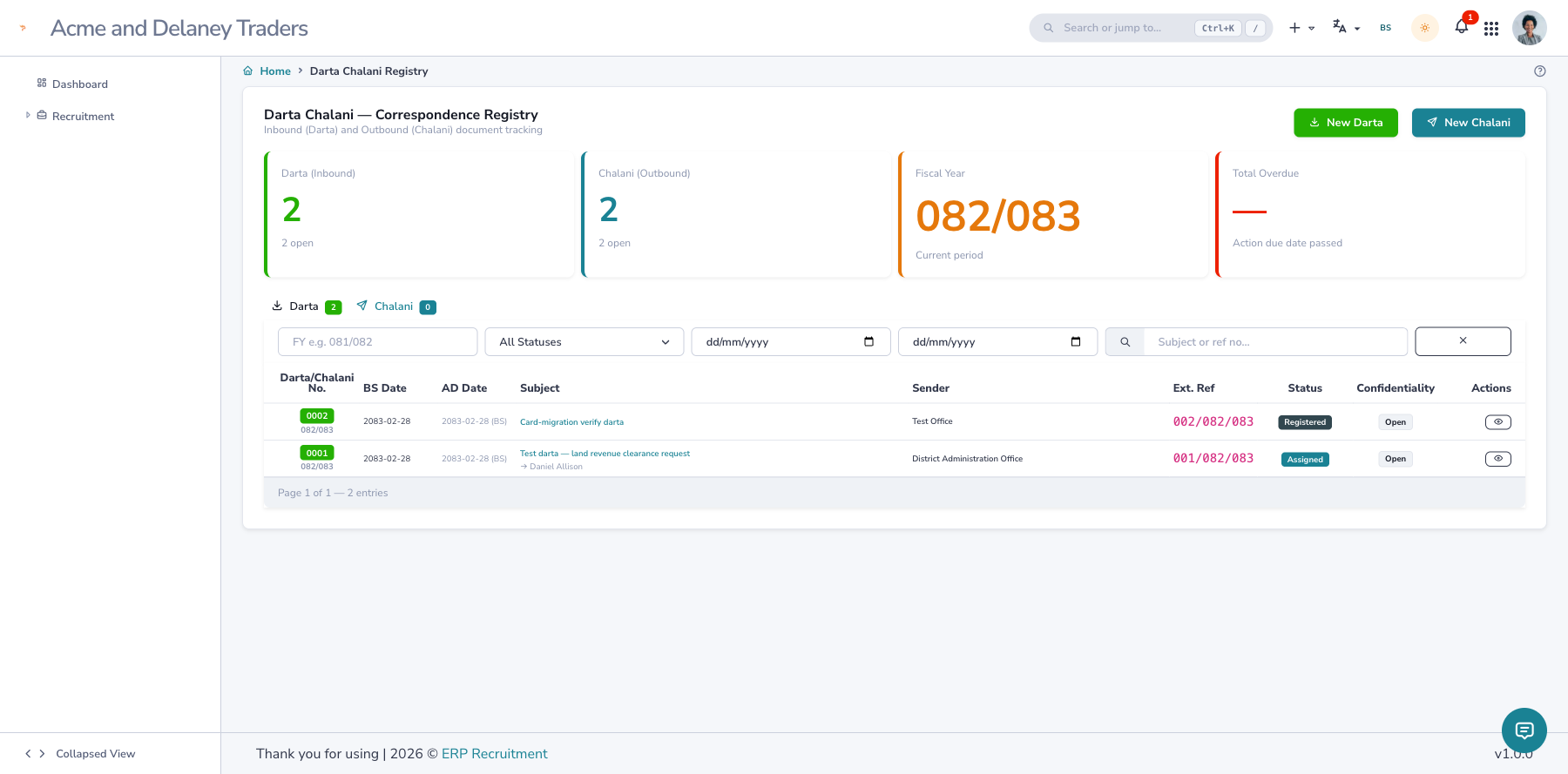
The Darta Chalani registry tracks every letter in and out of the office — darta (दर्ता, incoming) and chalani (चलानी, outgoing) — with a gapless register number per fiscal year.
Open Front Office → Darta Chalani Registry (/app/correspondence). The list shows both, with filters,
search and a per-tab count.
AD or BS — your choice
Every date can be entered and shown in AD or BS using the calendar switch in the top bar. The number you save is the same either way; the register keeps the official BS date alongside the AD date.
Register an incoming letter (Darta)
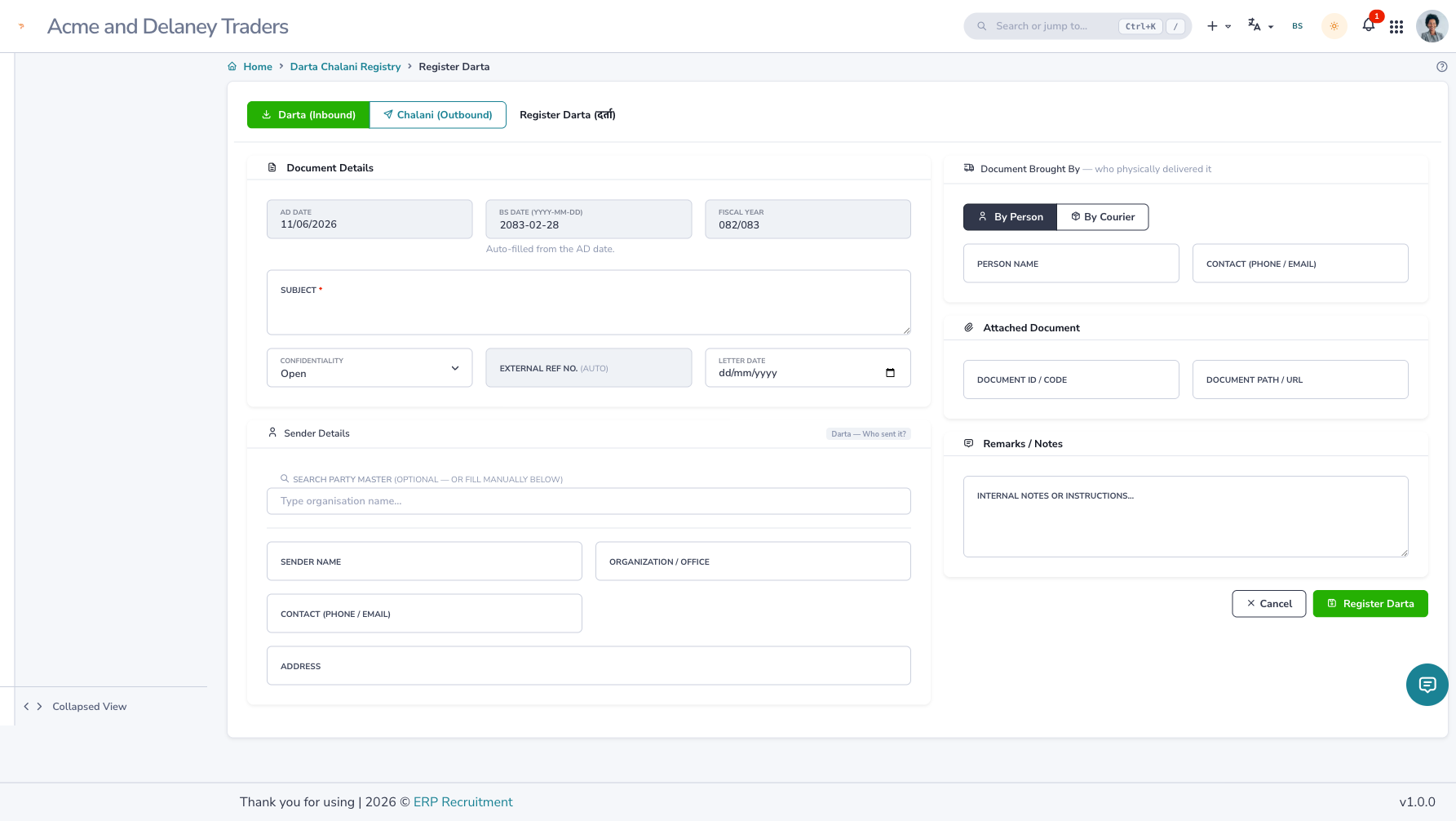
- Click New Darta.
- The AD/BS date and Fiscal Year fill in automatically; the register number is generated on save.
- Enter the Subject, the sender details (search the party master, or type them), and — optionally — who physically brought the document (by person or courier).
- Set Confidentiality (Open / Confidential / Secret) and attach the document if you have it.
- Click Register Darta.
Route it for action
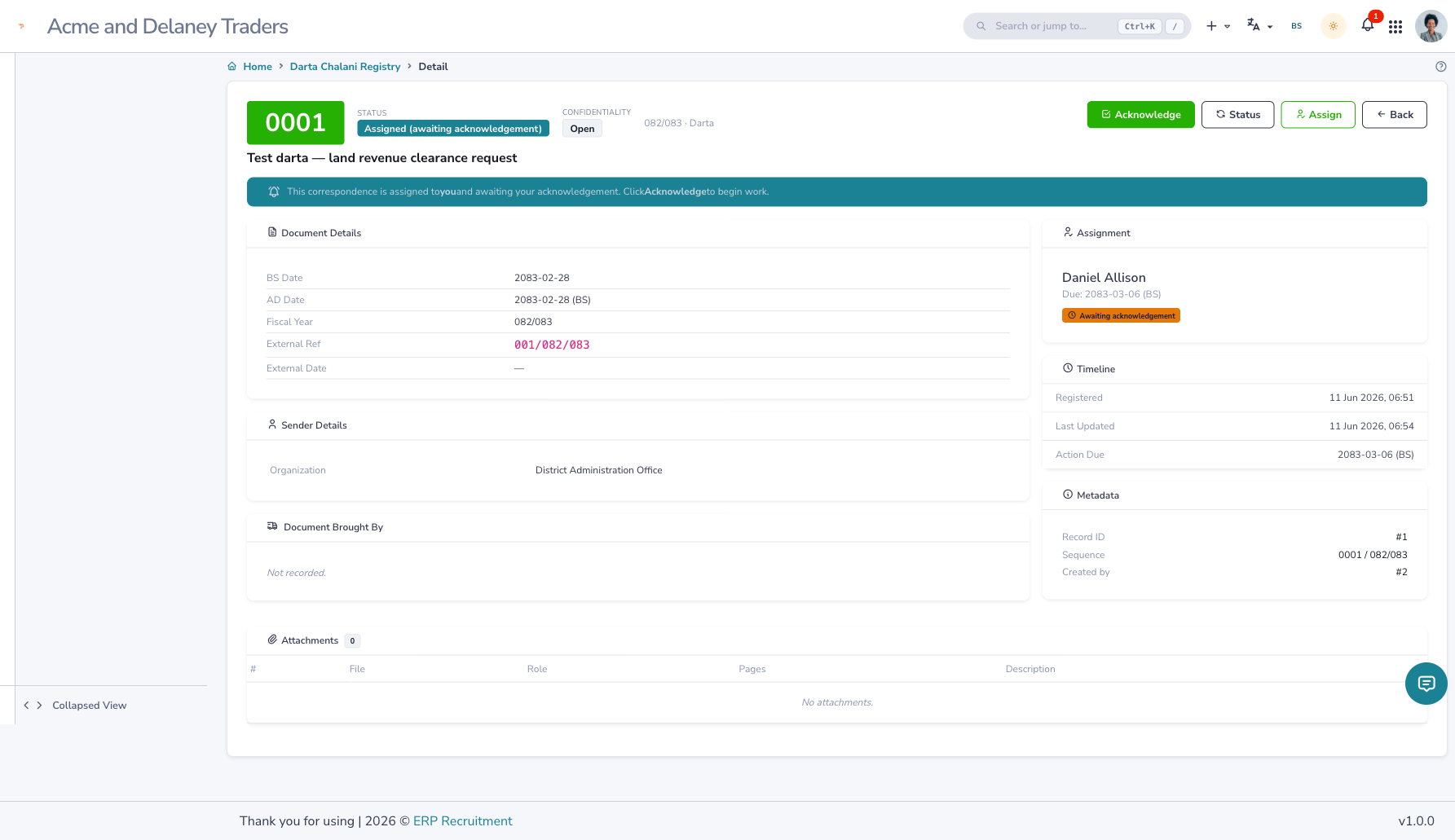
From the darta's detail page:
- Assign it to an officer (with an optional action due date). The assignee must Acknowledge before the document moves into action.
- Log progress, then move the status through to Closed / Filed (record the physical file location when filing).
Register an outgoing letter (Chalani)
- Click New Chalani and fill the subject + receiver details. The chalani number is generated on save.
- When the letter actually goes out, open it and click Dispatch — record the dispatch mode (hand delivery / post / courier / email), the date, and who carried it.
- When the recipient confirms receipt, record the Receiver Acknowledgement (receipt number, optional signed scan) — this closes the chalani.
Compose from a template
For standard letters, use Compose to fill a saved template's blanks (e.g. recipient name), preview it, and register the chalani in one step.
A PDF is attached automatically
A composed chalani is saved as a PDF letter attached to the record (Primary Letter), so the formal document is always on file — not just the text.
Mail-bag (batch) entry
Opening a bag of post? Use Batch / Mail Bag Opening to enter many letters as rows in a table — each row registers independently, so one bad row never blocks the rest.